 GuidedTrack Docs
File Upload Questions🔗
When you want your users to send you a file, such as a photo, a voice recording, or a signed form, you can use a file upload question. Set the *type to "file":
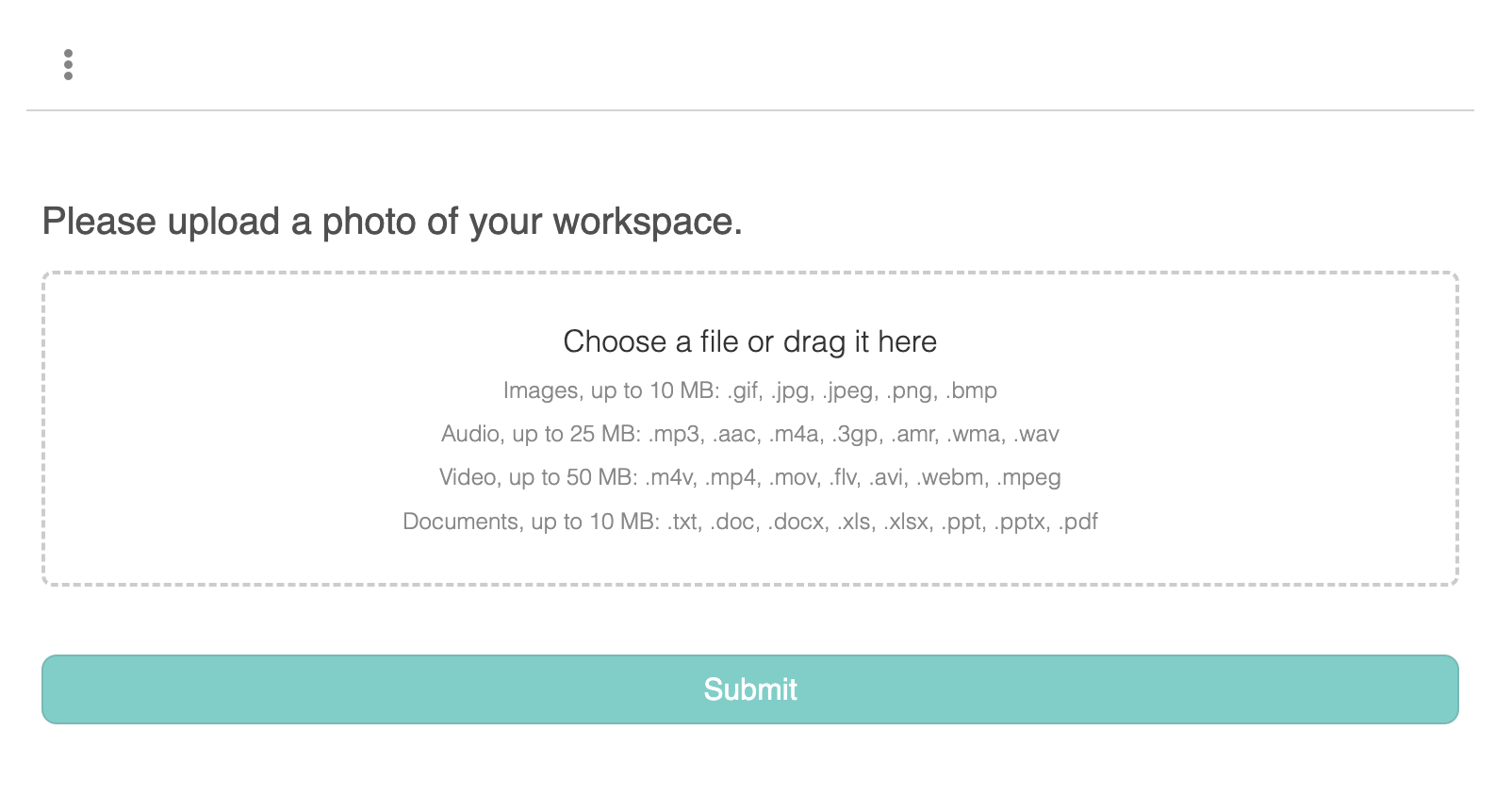
*question: Please upload a photo of your workspace. *type: fileWhen users reach this question, they'll see an area where they can click to pick a file from their device, or drag and drop one. Below it is a list of the kinds of files they can upload:
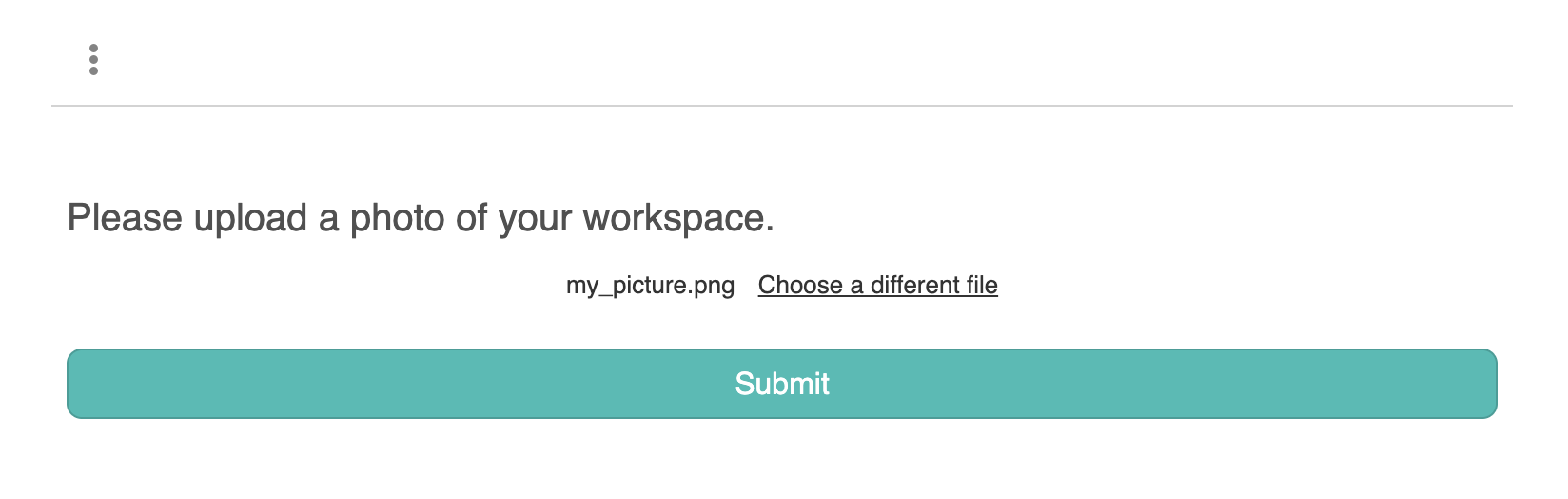
Users upload one file per question. Once the file has uploaded, they'll see its name along with a "Choose a different file" link, in case they picked the wrong one. If they choose a different file, it replaces the first one.
Note that files can't be uploaded while you're previewing your program. To try out a file upload question, run the program the way your users would.
Accessing uploaded files🔗
The answer to a file upload question is a link to the file. You'll find it with the rest of the user's answers when you're looking at the data. You'll also find it if you export your data as a CSV file. Click the link to open the file in your browser.
The reason for this restriction is that uploaded files can contain personal or sensitive information, such as a photo of the user or a signed form. So GuidedTrack stores them privately, and every time somebody tries to open one of these links, it checks that they have access to your program's data. This also means that you can't share a file by passing its link along. If somebody else needs to see the files, add them as a collaborator.
The files are kept for as long as the answers are. If you delete a user's data, or the program itself, the files are deleted too.
Saving the link with *save🔗
You can use *save with a file upload question, just like with other questions. The variable will hold the link to the file, as text:
*question: Please upload a photo of your workspace. *type: file *save: workspacePhotoIf you export your data as a CSV file, the link will then also appear in a column named workspacePhoto. Keep in mind that only you and your collaborators can open the link (see Accessing uploaded files), so it's not useful to show it to users in your program.
Making the upload optional with *blank🔗
As with the other question types, the default behavior is to not let users move to the next question until they answer the current one. If that's not the behavior you want, add *blank to allow them to move on without uploading a file:
*question: Please upload a photo of your workspace. *type: file *blankYou can use other question-related keywords with this question type as well, such as *tip. Keywords that only make sense for other types of questions, such as answer options, *default, *confirm and *throwaway, can't be used with a file upload question.
Choosing which files to accept with *allow🔗
By default, users can upload any of the kinds of files in the table below. If you only want certain kinds, add *allow followed by one or more categories, separated by commas:
*question: Please upload your recording. *type: file *allow: audio, videoIn this example, users can upload an audio or a video file, but not an image or a document.
These are the categories you can use with *allow, the files each one accepts, and how big those files can be:
| Category | Files accepted | Maximum size |
|---|---|---|
image |
.gif, .jpg, .jpeg, .png, .bmp | 10 MB |
audio |
.mp3, .aac, .m4a, .3gp, .amr, .wma, .wav | 25 MB |
video |
.m4v, .mp4, .mov, .flv, .avi, .webm, .mpeg | 50 MB |
document |
.txt, .doc, .docx, .xls, .xlsx, .ppt, .pptx, .pdf | 10 MB |
Note that *allow takes the name of a category, not of a file format. For example, to accept PDFs you would write *allow: document, not *allow: pdf.
If a user picks a file that isn't accepted, or one that is too big, they'll see a message explaining why and can pick another one.
Next: Additional keywords